The child's iPhone and iPad
An iPhone or iPad needs two things: a WireGuard tunnel to home that’s always on, and the filter’s certificate, trusted for websites.
One profile, or two
Section titled “One profile, or two”- Supervised (with Apple Configurator, which erases the device first):
filter/scripts/make-profile.py --wg <device>.conf --name "<device>" --supervised --no-home-checkbuilds one locked profile with the certificate and the tunnel together. - Unsupervised: the certificate as a profile, and the tunnel in the WireGuard app, as in the steps below.
- The tunnel. Add a VPN client for the device in the Firewalla app, and
import it into the WireGuard app. Edit the tunnel there: add
, ::/0to the peer’s Allowed IPs, so IPv6 doesn’t go around the filter, and turn on On-Demand for Wi-Fi and cellular. - The certificate. Connected to WireGuard, open
http://<Firewalla LAN address>:8091/ca.mobileconfigin Safari and allow the download. - Settings ▸ Profile Downloaded ▸ Install. The device passcode is needed.
- Settings ▸ General ▸ About ▸ Certificate Trust Settings: turn on the filter’s certificate (shown as “mitmproxy”). Without this, iOS doesn’t trust it for websites.
- On the Firewalla, add the device
to
clients.txt, and todevices.txtasios. - Screen Time ▸ Content & Privacy: stop new VPN profiles being added.
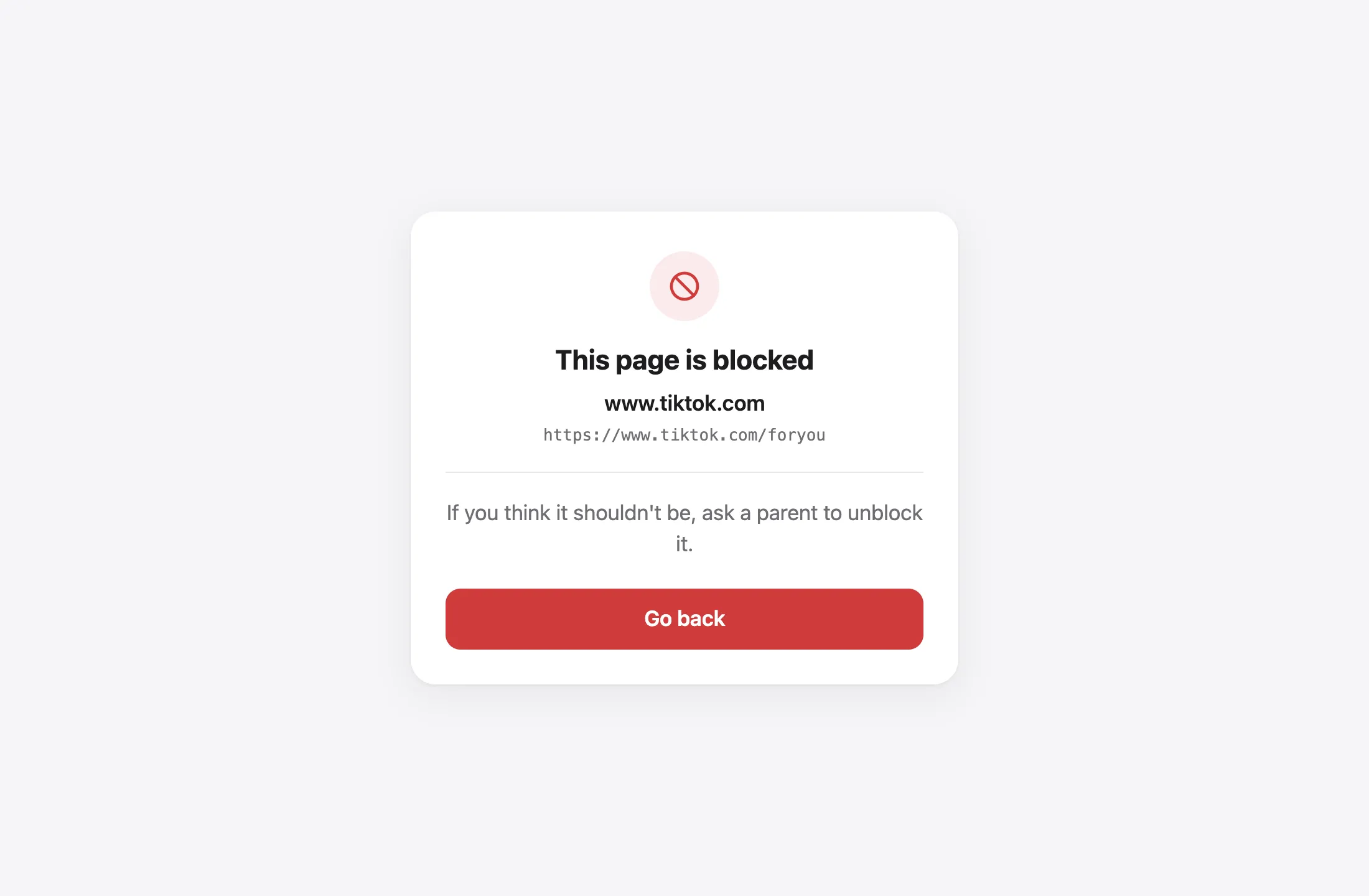
On the device, a blocked site shows the filter’s page:
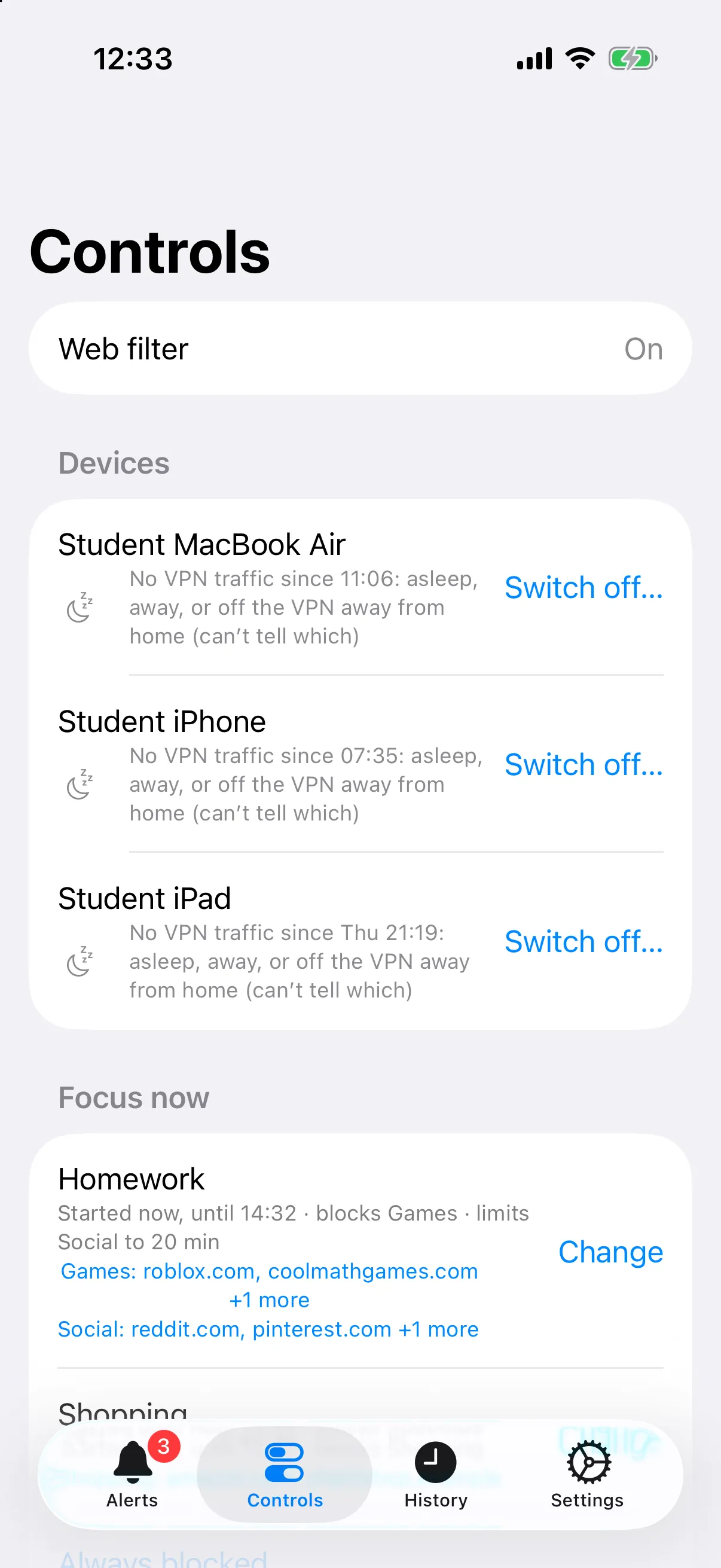
In either Family Filter app, the device shows under Devices, with its tunnel traffic:
Source: filter/README.md