Family Filter for Mac
Family Filter for Mac is the parent’s Mac app: the desktop version of Family Filter for iPhone, with more in it. It reads the child’s browser history (from the Firewalla or the shared iCloud folder) and talks to the web filter. It has two tabs: History, described here, and Focus.
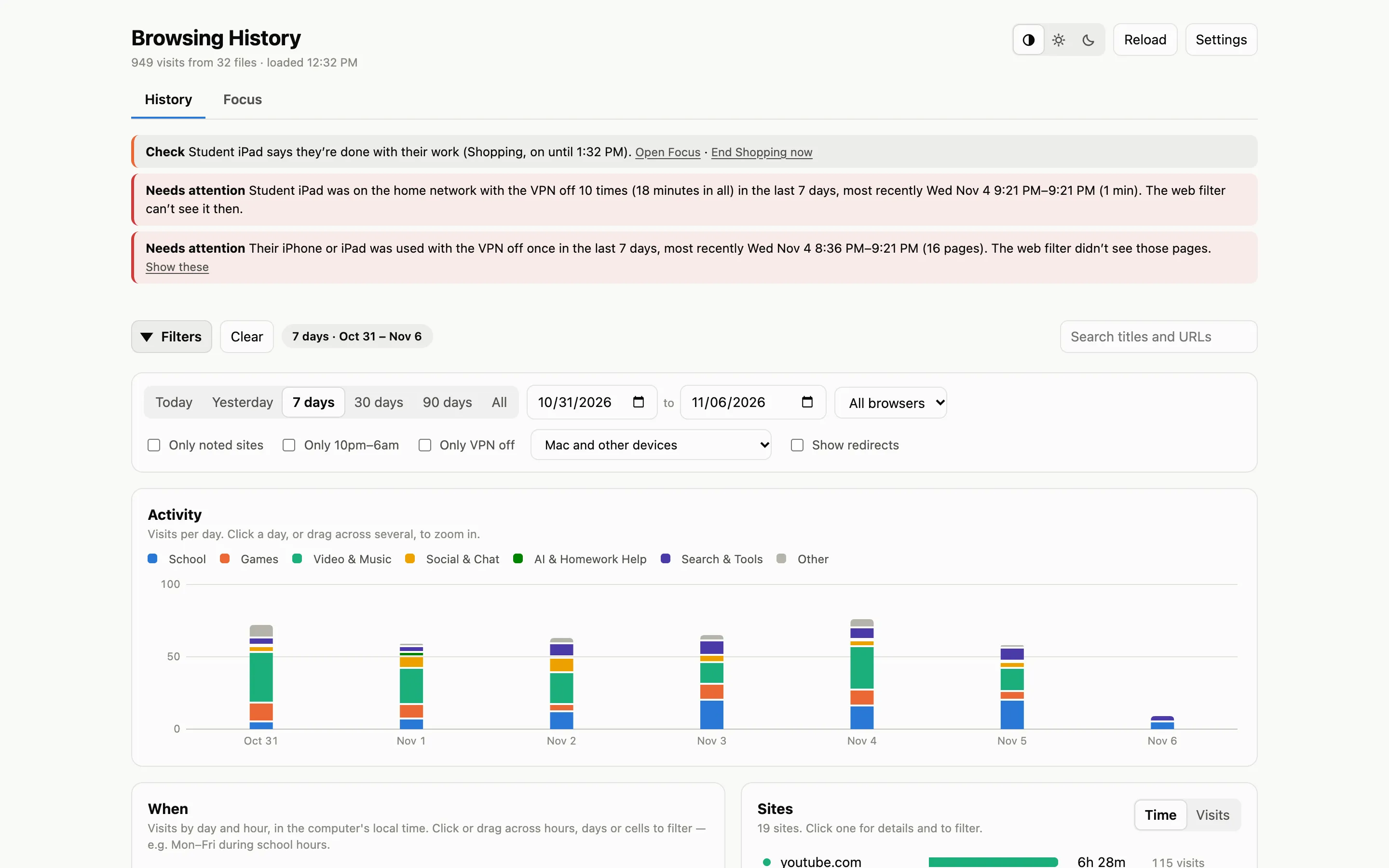
It’s a normal Mac app, with a window, a Dock icon and menus (Settings… ⌘,, Reload ⌘R, zoom, full screen). Underneath, a small local server reads the files and passes requests on to the filter. It only listens on this Mac.
Choosing what to look at
Section titled “Choosing what to look at”
The filter bar narrows everything below it, and all the selections combine:
- Dates: Today, Yesterday, 7, 30 or 90 days, All, or a range.
- Browser: Safari, Chrome, or one Chrome profile.
- Only noted sites, Only 10pm–6am, Only VPN off.
- Device: this Mac, other devices (the child’s iPhone and iPad, through iCloud), or both.
- Search titles and addresses.
Clicking a chart filters too: a day in Activity, a cell in When, a category or a site.

Pages visited, estimated active time, sites, late-night visits (10pm–6am), and visits to sites you’ve noted. Active time is estimated from the gap to the next visit, capped at 5 minutes a page.
Activity
Section titled “Activity”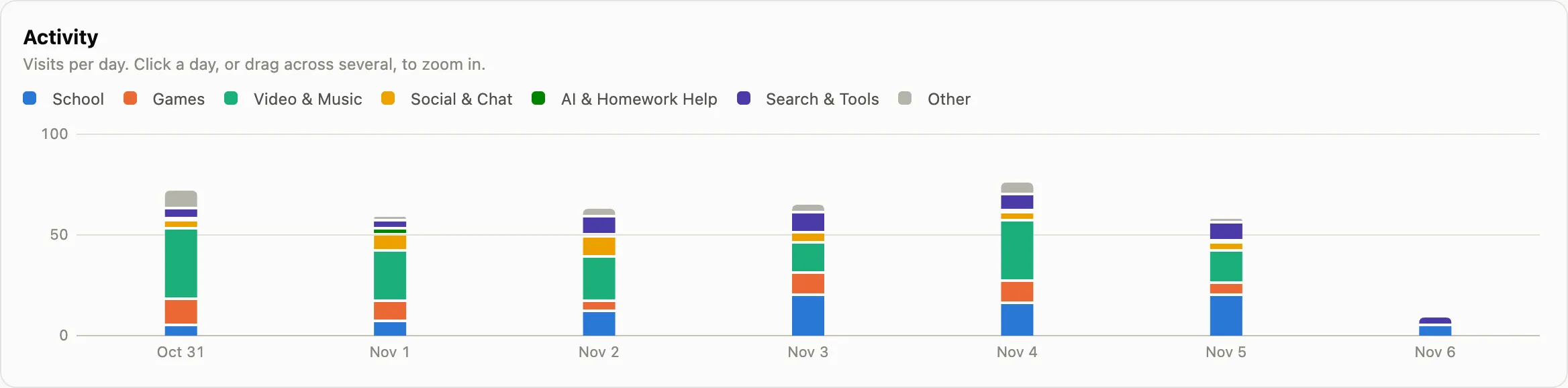
Visits over time, stacked by category. Click a day, or drag across several, to zoom in.
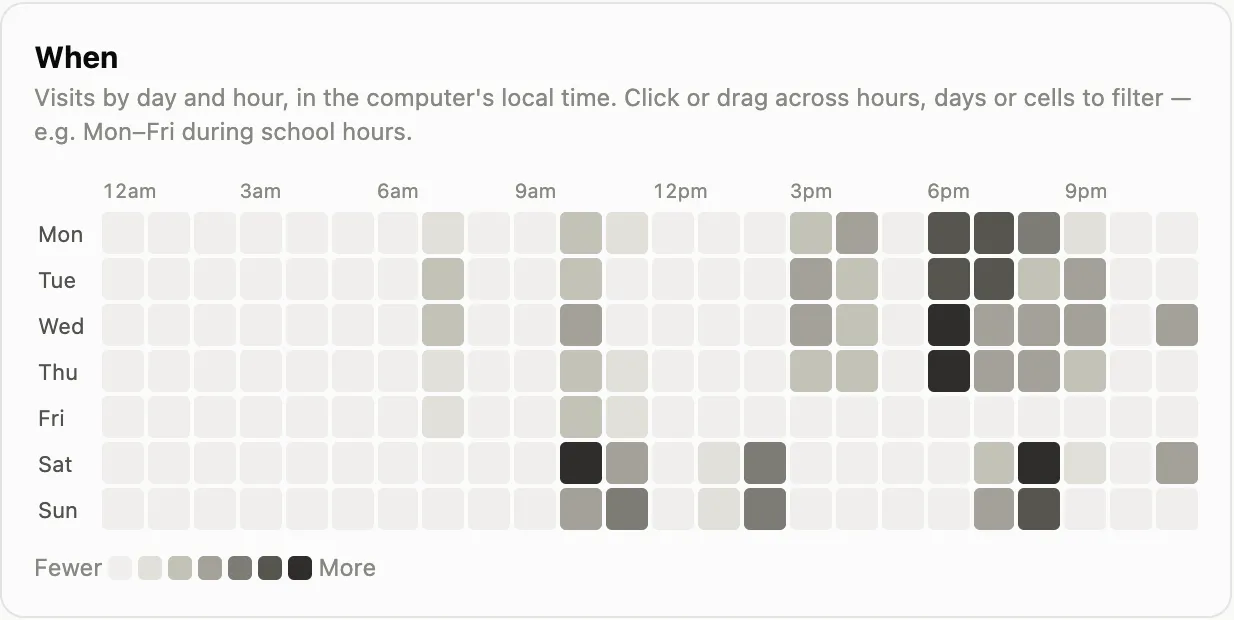
A day × hour heatmap. Click or drag across hours, days or cells to filter: for example Mon–Fri, 8am–3pm, for school hours.
Categories and sites
Section titled “Categories and sites”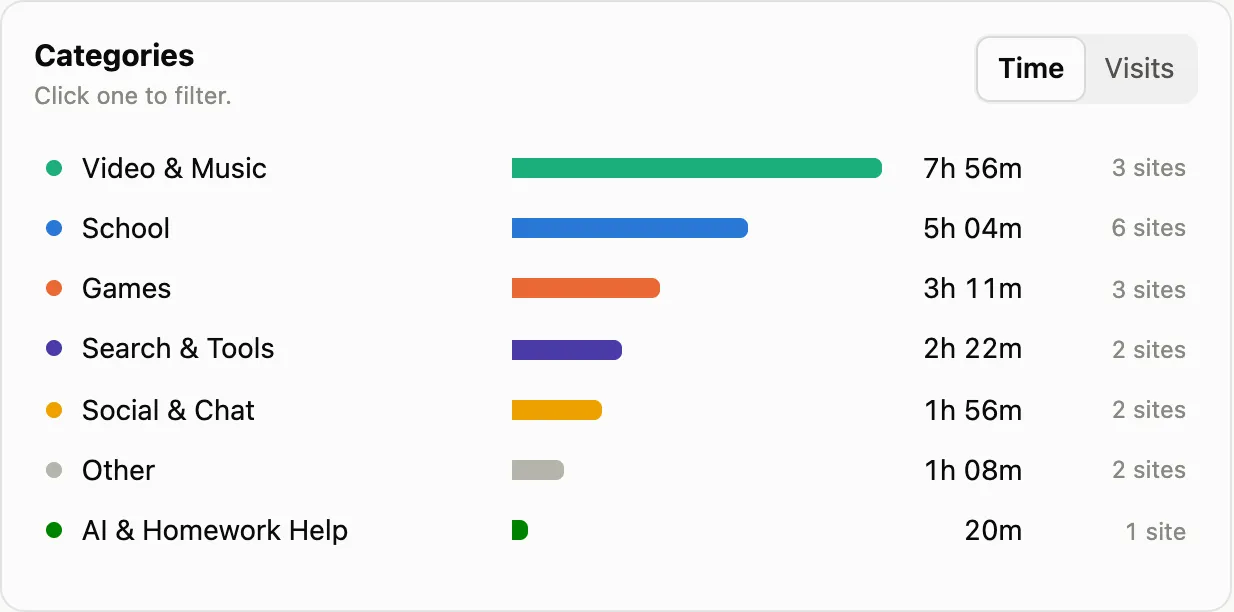
Time per category. Click one to filter.
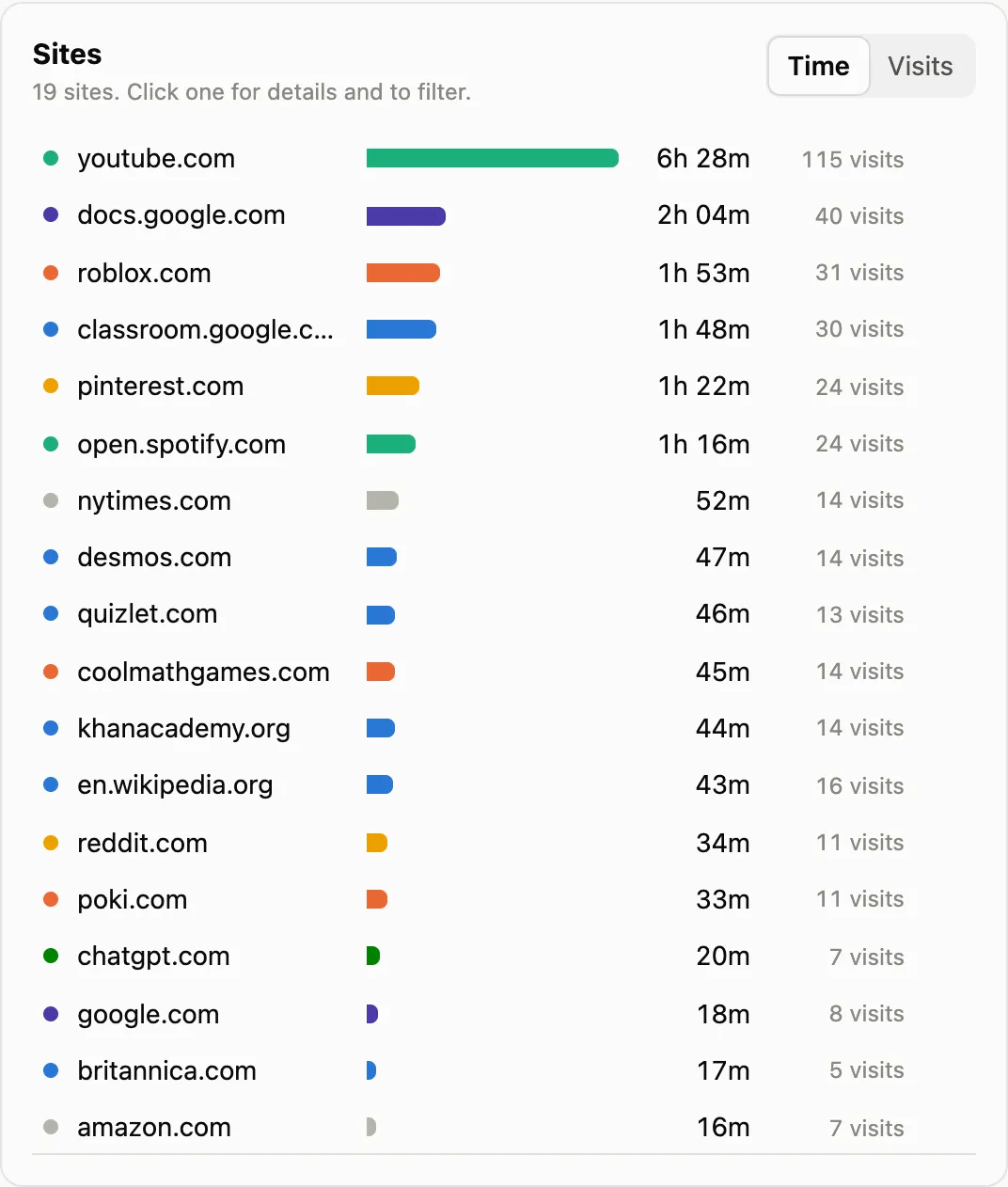
Sites by time or by visits. Click one to filter to it and open its details:

- Category: where it came from, and a menu to correct it.
- Mark as noted: flags the site in red everywhere.
- Block site / Never block: see Web filter.
Where categories come from
Section titled “Where categories come from”In order of precedence:
- Your corrections (site details ▸ Category).
- A built-in starter list of common sites.
- Anything any list flags as mature or risky (adult, gambling, drugs, VPN or proxy, malware…).
- Block List Project, then Cloudflare, then UT1, whichever knows the site.
The UT1 and Block List Project lists are downloaded to the Mac and refreshed weekly. Cloudflare is optional: with a token in Settings, each site name (not the full address, and not the times) is sent to Cloudflare once and the answer is kept. Red is kept for noted sites.
Timeline
Section titled “Timeline”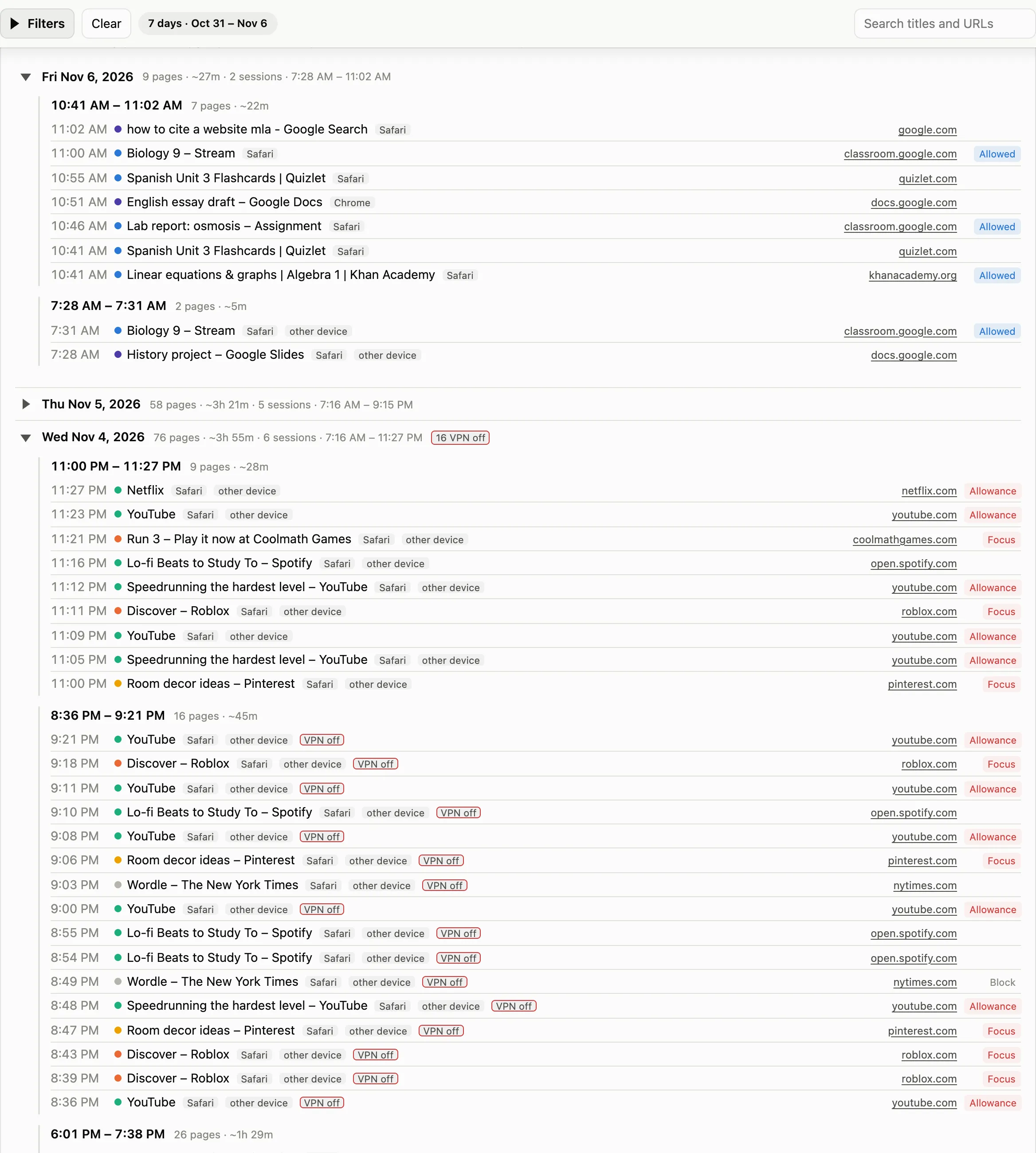
Every visit, newest first, grouped into sessions (a new one after 30 minutes idle) and coloured by category. Badges say which browser, other device for visits synced from the child’s iPhone or iPad, VPN off for pages the filter didn’t see, and Allowed or Blocked where a filter entry covers the page. Each row has a Block menu; see Web filter.
History changes
Section titled “History changes”
History Sync notices when Chrome history disappears: visits deleted, all history cleared, or the History file replaced. See Alerts.
Settings
Section titled “Settings”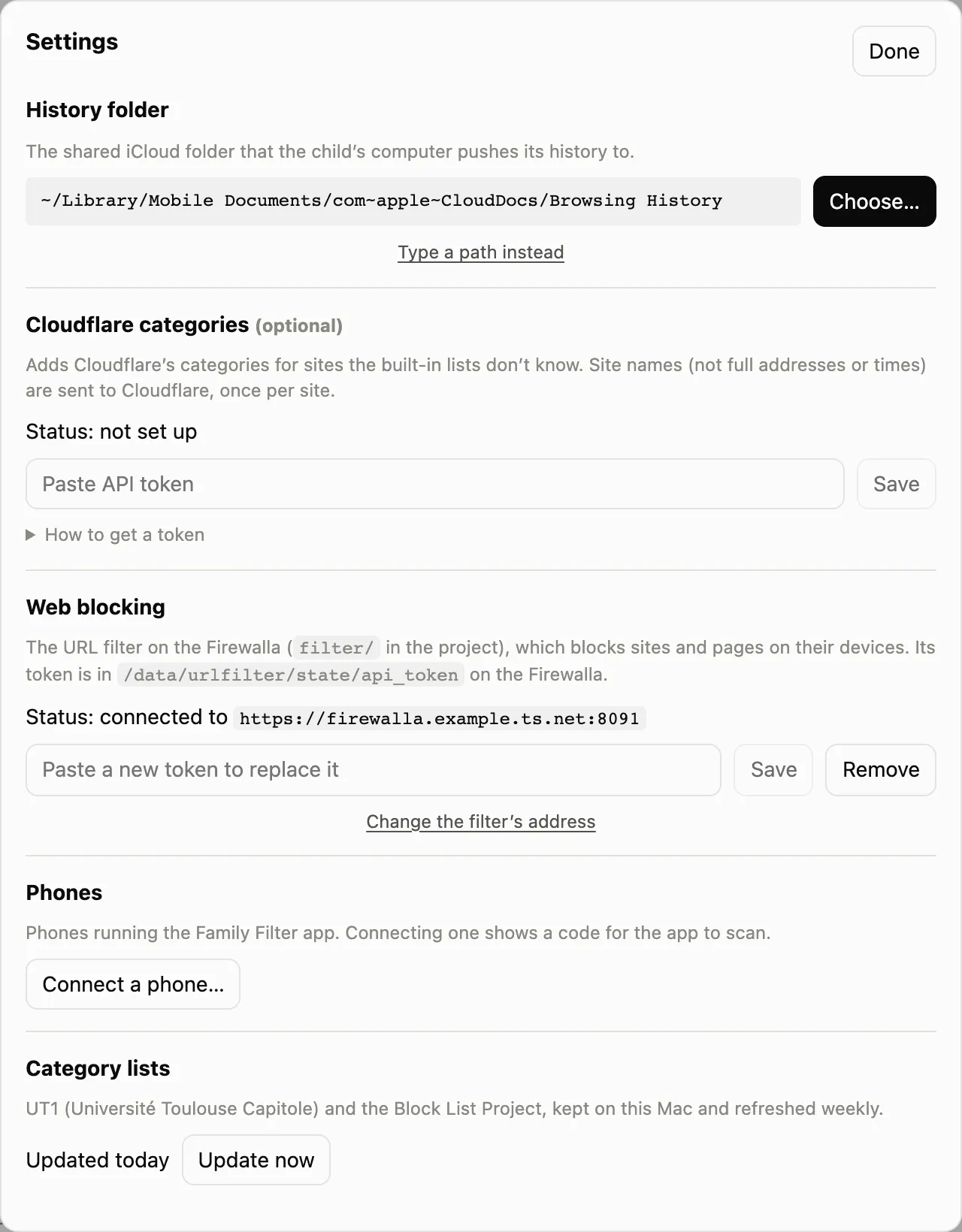
- History folder: the shared iCloud folder, if history comes from there.
- History from the Firewalla: the address and a read token, and whether this Mac is the archive. See History service.
- Cloudflare categories (optional).
- Web blocking: the filter’s address and token. The page never sees the token: the app’s server adds it to each request.
- Phones: Connect a phone… shows a code for Family Filter for iPhone to scan.
- Category lists: when they were last updated.
Settings, noted sites and corrections live in
~/Library/Application Support/Browsing History/ on the Mac.
Caveats
Section titled “Caveats”- Times are the child’s computer’s clock, as recorded.
- Browsers record when a page opened, not how long it stayed open, so active time is an estimate.
Source: viewer/README.md